

Web Interface
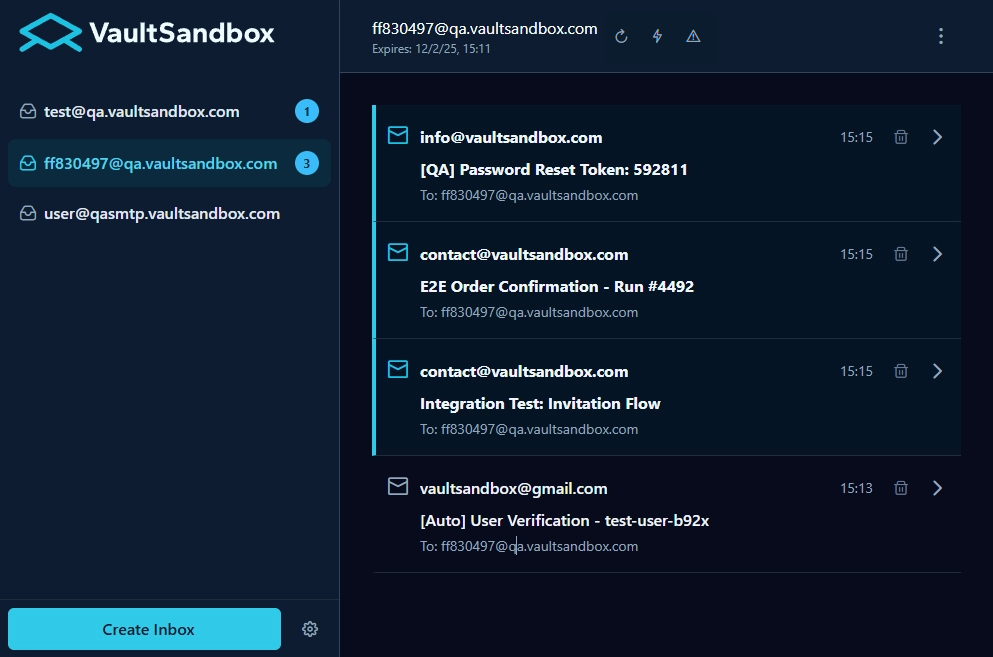
A web application provides a rich user interface for the VaultSandbox Gateway SMTP server. You can view and manage emails, inspect authentication results (SPF, DKIM, DMARC), monitor gateway metrics, and configure inbox settings, all through a simple interface.
Features
Section titled “Features”- Email Management: Browse received emails
- Email Detail View: Full email rendering with HTML/text views, attachments, and headers
- Authentication Results: Visual display of SPF, DKIM, DMARC, and reverse DNS validation
- Custom Inboxes: Create and manage multiple virtual inboxes
- Real-Time Updates: Server-Sent Events (SSE) for live email notifications
- Gateway Metrics: Monitor SMTP server performance and health
- Webhooks: Configure HTTP notifications for email events (global or per-inbox)
- Chaos Testing: Configure chaos engineering modes per inbox for SMTP resilience testing
- Spam Analysis: View spam scores and detailed spam indicators for received emails
- Dark/Light Theme: Automatic theme switching based on system preferences
- Quantum-Safe Decryption: Support for ML-KEM-768 encrypted email payloads
- Responsive Design: Mobile-friendly interface built with PrimeNG and Tailwind CSS
Tech Stack
Section titled “Tech Stack”- Framework: Angular 20.3
- UI Components: PrimeNG 20.3 with Material Aura theme
- Styling: Tailwind CSS 4.x with PrimeUI plugin
- State Management: RxJS observables and signals
- Security: DOMPurify for HTML sanitization
- Cryptography: @noble/post-quantum for ML-KEM-768 decryption
- Testing: Jasmine + Karma
Accessing the Web Interface
Section titled “Accessing the Web Interface”The web interface is automatically served by the Gateway backend at the /app endpoint.
Default URLs
Section titled “Default URLs”- HTTP:
http://localhost:80/app(or your configuredVSB_SERVER_PORT) - HTTPS:
https://your-domain.com/app(if TLS is enabled)
First Time Access
Section titled “First Time Access”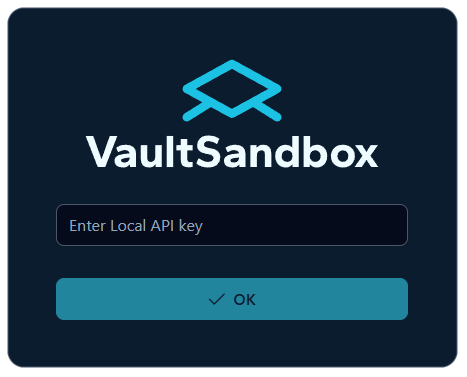
- Navigate to
https://your-domain/appin your browser - You’ll be prompted to enter an API key
- Get your API key from the backend:
Terminal window # Retrieve from Docker containerdocker compose exec gateway cat /app/data/.api-key; echo - Enter the API key in the web interface
- The key is stored in your browser’s localStorage for future visits
API Key Management
Section titled “API Key Management”The web interface uses browser localStorage to persist the API key:
- First Launch: User is prompted to enter API key via form
- Validation: Key is validated against backend’s
/api/check-keyendpoint - Storage: Valid key is stored in
localStoragewith keyvaultsandbox_api_key - Persistence: Key is loaded from localStorage on subsequent visits
- Automatic Injection: All API requests include the key via
X-API-Keyheader
Getting Your API Key
Section titled “Getting Your API Key”# Backend generates API key on first startup# Retrieve it from the Docker container:docker compose exec gateway cat /app/data/.api-key; echo
# Or using Docker CLI:docker exec vaultsandbox-gateway cat /app/data/.api-key; echoUser Workflow
Section titled “User Workflow”- Open web interface at
https://your-domain/app - Enter API key when prompted (one-time setup)
- Key is stored in browser and used for all subsequent requests
- No need to re-enter key unless localStorage is cleared
Troubleshooting API Key Issues
Section titled “Troubleshooting API Key Issues”- Check API Key: Verify key matches backend
.api-keyfile - Check localStorage: Open DevTools → Application → Local Storage → Check
vaultsandbox_api_key - Clear and Re-enter: Clear localStorage and re-enter the API key
- Header Inspection: Check browser DevTools Network tab for
X-API-Keyheader in requests - Backend Validation: Ensure backend
/api/check-keyendpoint is accessible
Email Management
Section titled “Email Management”Inbox View
Section titled “Inbox View”The main inbox interface provides:
- Email List: View all received emails with sender, subject, and timestamp
- Filtering: Filter by inbox
- Actions: Delete inbox and emails
Email Detail View
Section titled “Email Detail View”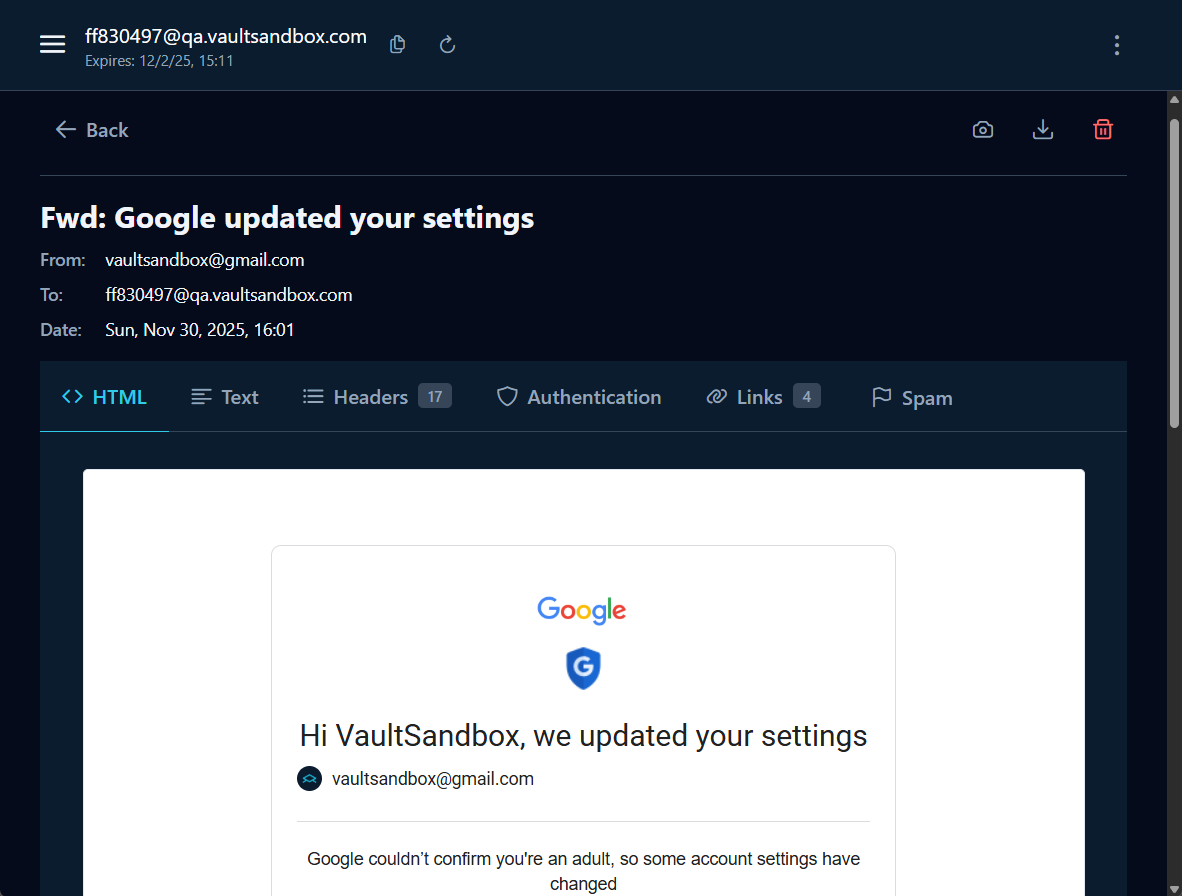
Click any email to view full details:
- HTML/Text Views: Toggle between HTML and plain text rendering
- Headers: Expandable view of all email headers
- Attachments: List of attachments with download support
- Links: Extracted links with security warnings for external URLs
- Authentication Results: Visual display of SPF, DKIM, DMARC, and reverse DNS
- Spam Analysis: View spam score and detailed spam indicators
- Email Snapshot: Capture a screenshot of the email view using the camera button
Email Authentication Display
Section titled “Email Authentication Display”The web interface provides comprehensive visualization of email authentication:
SPF (Sender Policy Framework)
Section titled “SPF (Sender Policy Framework)”- Pass: Green checkmark - Sender IP authorized by domain
- Fail: Red X - Sender IP not authorized
- SoftFail: Yellow warning - Policy suggests rejection but not required
- Neutral: Gray dash - No policy statement
- None: Gray dash - No SPF record found
- Skipped: Gray “Skipped” label - Check was disabled for this inbox
DKIM (DomainKeys Identified Mail)
Section titled “DKIM (DomainKeys Identified Mail)”- Pass: Green checkmark - Valid cryptographic signature
- Fail: Red X - Invalid or missing signature
- None: Gray dash - No DKIM signature present
- Skipped: Gray “Skipped” label - Check was disabled for this inbox
DMARC (Domain-based Message Authentication)
Section titled “DMARC (Domain-based Message Authentication)”- Pass: Green checkmark - Alignment checks passed
- Fail: Red X - Alignment checks failed
- None: Gray dash - No DMARC policy found
- Skipped: Gray “Skipped” label - Check was disabled for this inbox
Reverse DNS
Section titled “Reverse DNS”- Pass: Green checkmark - Valid PTR record for sender IP
- Fail: Red X - No PTR record or mismatch
- None: Gray dash - No PTR record found
- Skipped: Gray “Skipped” label - Check was disabled for this inbox
Custom Inboxes
Section titled “Custom Inboxes”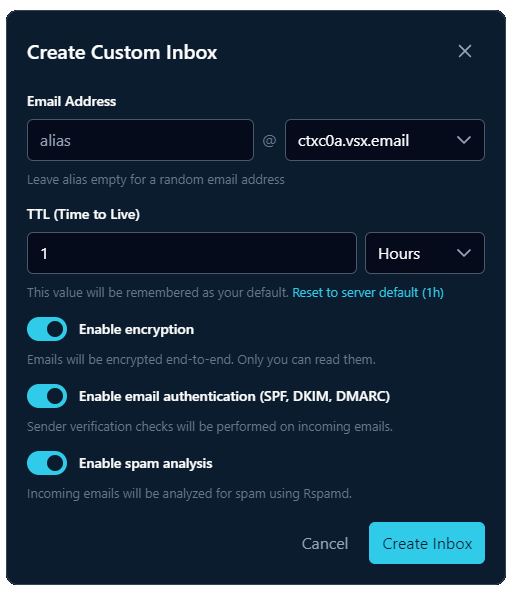
Create and manage multiple virtual inboxes to organize emails:
- Quick Create: Click the “Create Inbox” button to instantly create an inbox with the last used or default values
- Custom Configuration: Click the cog icon at the right to access the configuration dialog where you can:
- Email Address: Enter an alias (leave empty for a random email address)
- Domain: Select from available domains (if you have more than one configured)
- TTL (Time to Live): Set the inbox lifetime in hours (this value will be remembered as your default)
- Enable encryption: Encrypt emails end-to-end so only you can read them
- Enable email authentication (SPF, DKIM, DMARC): Perform sender verification checks on incoming emails
- Enable spam analysis: Analyze incoming emails for spam using Rspamd
Inbox Management
Section titled “Inbox Management”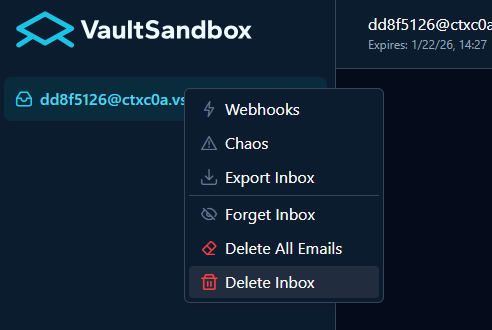
Right-click on any inbox in the sidebar to access the context menu with the following options:
- Webhooks: Configure webhooks for this specific inbox
- Chaos: Configure chaos engineering modes for SMTP testing on this inbox
- Export Inbox: Export just the inbox alias and private key
- Forget Inbox: Remove the inbox from your local storage (does not delete the inbox from server)
- Delete All Emails: Remove all emails from the inbox while keeping the inbox itself
- Delete Inbox: Permanently delete the inbox and all its emails
Application Menu
Section titled “Application Menu”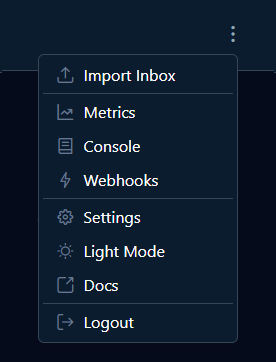
Click the menu icon in the top-left corner of the interface to access additional options and tools:
- Import Inbox: Import a previously exported inbox
- Metrics: Open the metrics dashboard to monitor SMTP server performance, connection statistics
- Console: Access the Server-Sent Events (SSE) console for debugging real-time notifications and monitoring event streams
- Webhooks: Configure global webhooks that apply to all inboxes
- Settings: Configure application preferences
- Light Mode: Toggle between light and dark themes
- Docs: Open the VaultSandbox documentation
- Logout: Clear your API key and log out of the application
Gateway Metrics
Section titled “Gateway Metrics”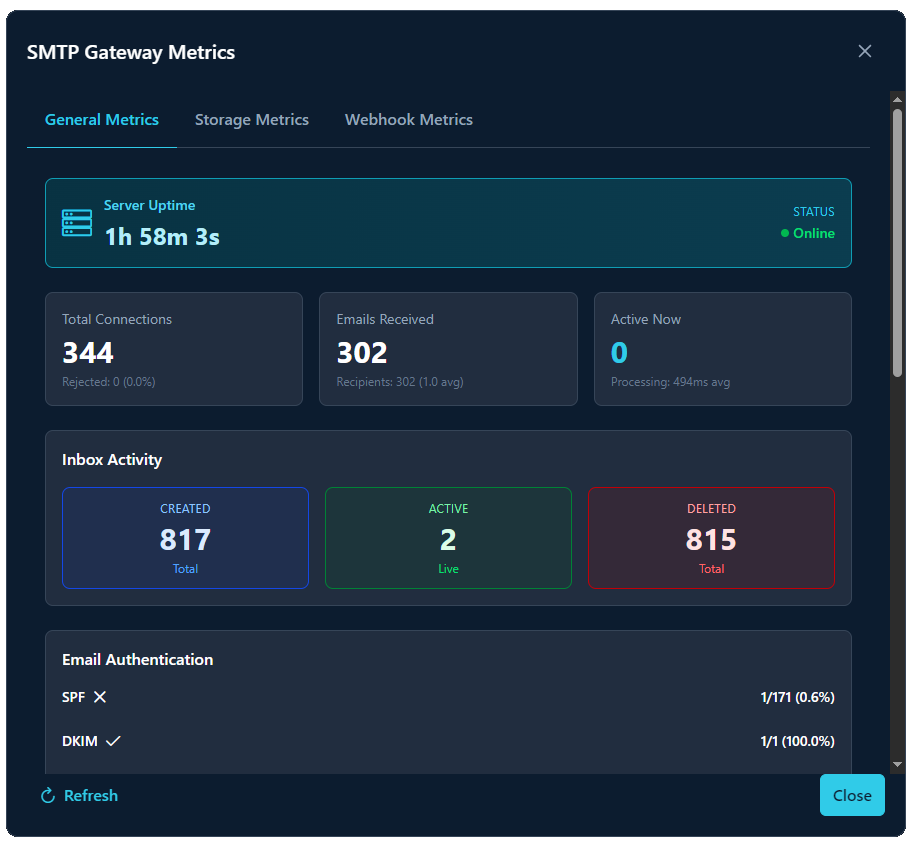
Monitor SMTP server performance and health:
- Click the “Metrics” button in the toolbar
- View real-time metrics in the General Metrics tab:
- Server Uptime: Uptime duration and online status
- Total Connections: Connection count with rejected percentage
- Emails Received: Total emails with recipient count and average
- Active Now: Current active connections with processing time
- Inbox Activity: Created, active, and deleted inbox counts
- Email Authentication: SPF and DKIM pass/fail statistics
- View storage information in the Storage Metrics tab:
- Memory Usage: Current email storage space used
- Free Space: Available storage capacity
- Cleanup Schedule: When automatic cleanup occurs
- View webhook statistics in the Webhook Metrics tab:
- Webhook Deliveries: Total webhook requests sent
- Success/Failure Rates: Delivery success statistics
SSE Console
Section titled “SSE Console”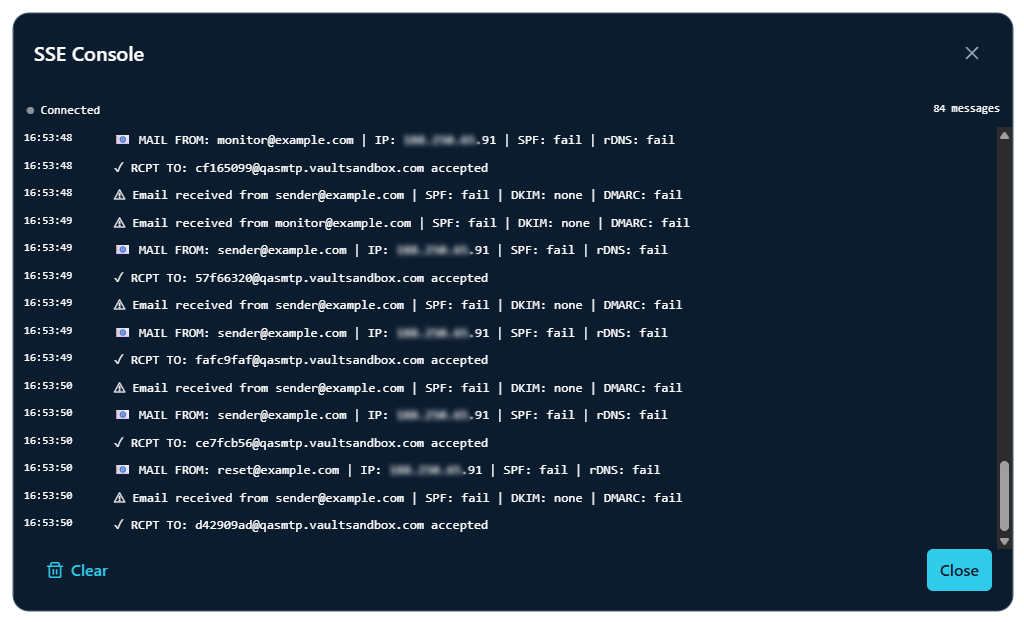
For debugging and monitoring SSE events:
- Click the “Console” button in the toolbar
- View live stream of all SSE events
Settings
Section titled “Settings”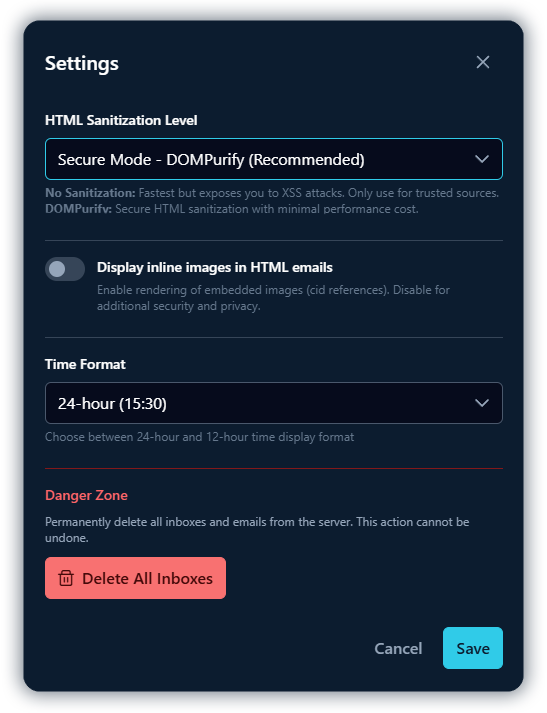
Configure application preferences and security options:
HTML Sanitization Level
Section titled “HTML Sanitization Level”Choose how HTML email content is sanitized before rendering:
- Trusted Mode: No sanitization, but content is rendered in a sandboxed iframe for isolation. Fastest rendering while maintaining basic security boundaries. Only use for trusted sources.
- Secure Mode - DOMPurify (Recommended): Secure HTML sanitization with minimal performance cost. Protects against malicious scripts while preserving legitimate HTML formatting.
Display Inline Images in HTML Emails
Section titled “Display Inline Images in HTML Emails”Toggle to enable or disable rendering of embedded images (cid references) in HTML emails. Disable for additional security and privacy if you’re concerned about tracking pixels or external content.
Time Format
Section titled “Time Format”Choose between 24-hour and 12-hour time display format throughout the application:
- 24-hour (15:30): Military/international time format
- 12-hour (3:30 PM): Standard AM/PM format
Danger Zone
Section titled “Danger Zone”Delete All Inboxes: Permanently delete all inboxes and emails from the server. This action cannot be undone and will remove all data immediately.
Webhooks
Section titled “Webhooks”Configure webhooks to receive HTTP notifications when email events occur.
Global Webhooks
Section titled “Global Webhooks”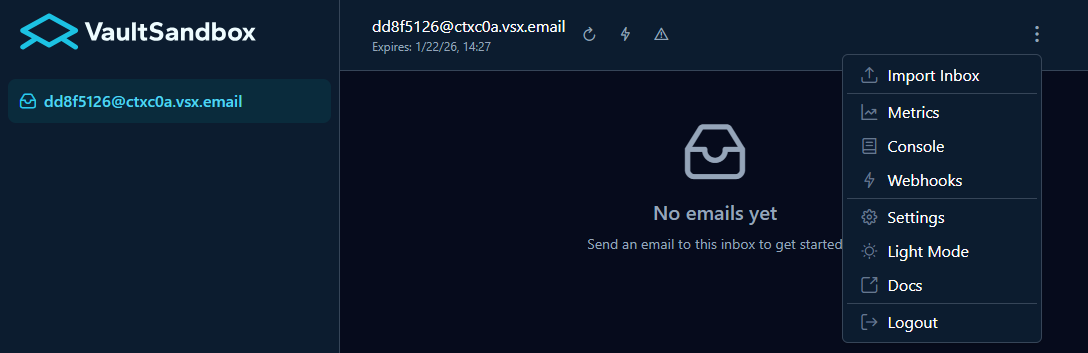
Access global webhooks from the application menu. These webhooks apply to all inboxes.
Inbox Webhooks
Section titled “Inbox Webhooks”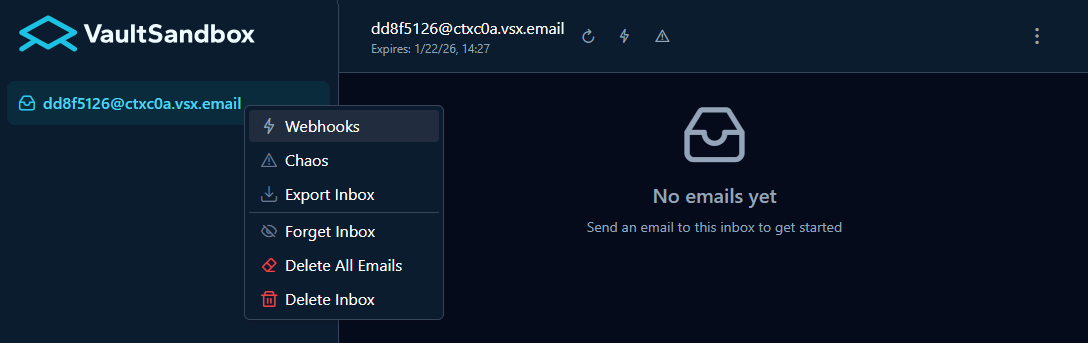
Access inbox-specific webhooks in two ways:
- Right-click an inbox in the sidebar and select Webhooks
- Click the bolt icon in the header bar next to the inbox email address
Creating a Webhook
Section titled “Creating a Webhook”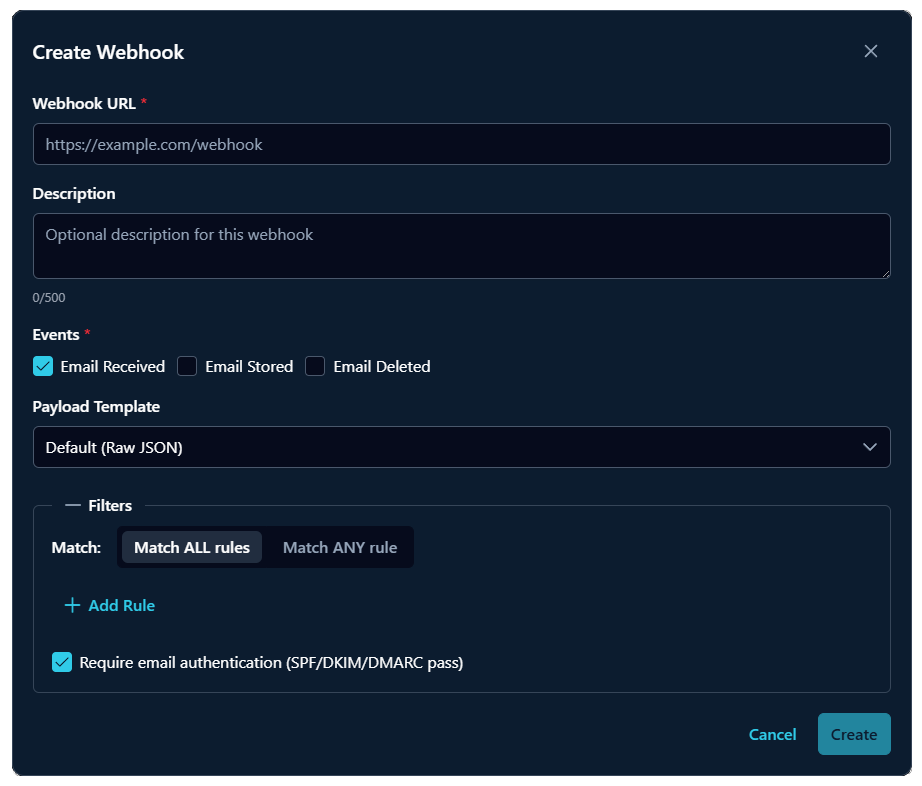
- Webhook URL: The endpoint that will receive POST requests
- Description: Optional description for the webhook
- Events: Select which events trigger the webhook (Email Received, Email Stored, Email Deleted)
- Payload Template: Choose the payload format (Default Raw JSON or custom templates)
- Filters: Add rules to filter which emails trigger the webhook
- Require email authentication: Only trigger for emails that pass SPF/DKIM/DMARC checks
Chaos Testing
Section titled “Chaos Testing”Configure chaos engineering modes to simulate email delivery failures and test application resilience.
Accessing Chaos Configuration
Section titled “Accessing Chaos Configuration”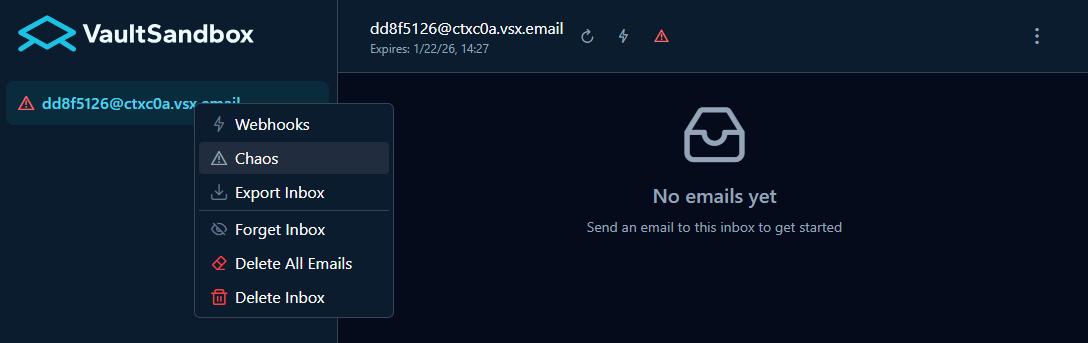
Access chaos configuration for an inbox in two ways:
- Right-click an inbox in the sidebar and select Chaos
- Click the warning icon in the header bar next to the inbox email address
Chaos Configuration Dialog
Section titled “Chaos Configuration Dialog”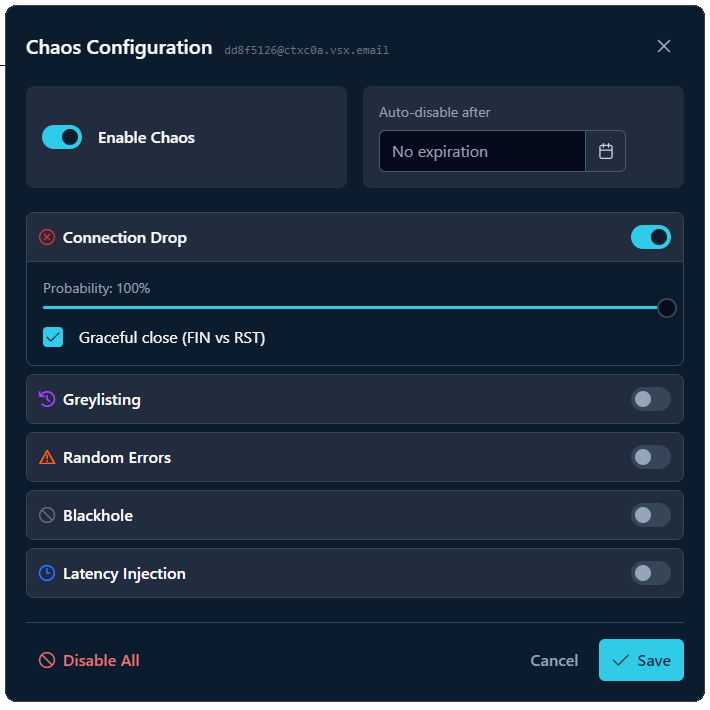
- Enable Chaos: Master toggle to enable or disable chaos for this inbox
- Auto-disable after: Set an expiration date to automatically disable chaos
- Connection Drop: Drop SMTP connections before sending a response. Configure probability (0-100%) and graceful close (FIN vs RST)
- Greylisting: Reject initial delivery attempts, accept on retry (tests retry logic)
- Random Errors: Return random SMTP error codes (4xx temporary or 5xx permanent)
- Blackhole: Accept emails but silently discard them
- Latency Injection: Add artificial delays to SMTP responses
- Disable All: Quickly disable all chaos modes
For detailed configuration options and API usage, see Chaos Engineering.
Theme Management
Section titled “Theme Management”The web interface supports automatic theme switching:
- Light: Always use light theme
- Dark: Always use dark theme
Changing Theme
Section titled “Changing Theme”- Click the theme toggle button in the toolbar
- Select preferred theme
- Preference is saved to localStorage
Quantum-Safe Encryption
Section titled “Quantum-Safe Encryption”The web interface supports decryption of quantum-safe encrypted email payloads:
Encryption Flow (Backend → Frontend)
Section titled “Encryption Flow (Backend → Frontend)”- Backend encrypts email using ML-KEM-768 (NIST FIPS 203)
- Backend signs payload using ML-DSA-65 (NIST FIPS 204)
- Frontend receives encrypted payload via API
- Frontend decapsulates shared secret using recipient private key
- Frontend derives AES-256-GCM key via HKDF-SHA-512
- Frontend decrypts and verifies email content
Key Management
Section titled “Key Management”- Development: Ephemeral keys generated in browser
- Production: Private keys loaded from secure storage
- Key Format: Raw binary or Base64-encoded
Security Features
Section titled “Security Features”Input Sanitization
Section titled “Input Sanitization”- DOMPurify: Sanitizes HTML email content before rendering
- CSP-safe: No inline scripts or styles in email content
- Link Extraction: External links displayed with security warnings
API Security
Section titled “API Security”- API Key Authentication: All requests authenticated via
X-API-Keyheader - CORS: Cross-origin requests handled by backend CORS policy
- Rate Limiting: Backend enforces rate limits on API endpoints
Cryptography
Section titled “Cryptography”- Post-Quantum: ML-KEM-768 for key encapsulation
- Digital Signatures: ML-DSA-65 for payload verification
- AES-256-GCM: Symmetric encryption with HKDF-SHA-512 key derivation
Security Considerations
Section titled “Security Considerations”localStorage API Key Storage
Section titled “localStorage API Key Storage”- Not for Production Auth: localStorage is accessible via JavaScript (XSS risk)
- Testing Environments: Designed for QA/staging where users are trusted
- Single API Key: Backend typically has one API key shared by all frontend users
- No Encryption: Key stored in plaintext in localStorage
- HTTPS Recommended: Always use HTTPS to prevent key interception
Browser Support
Section titled “Browser Support”- Chrome/Edge: Latest 2 versions
- Firefox: Latest 2 versions
- Safari: Latest 2 versions
- Mobile: iOS Safari, Chrome Android
Troubleshooting
Section titled “Troubleshooting”Cannot Connect to Backend
Section titled “Cannot Connect to Backend”- Check Backend Status: Ensure backend is running on expected port
- Verify URL: Check browser console for API endpoint errors
- CORS Issues: Ensure backend allows frontend origin (check
VSB_SERVER_ORIGIN)
Email Content Not Rendering
Section titled “Email Content Not Rendering”- Sanitization: Check browser console for DOMPurify warnings
- CSP: Verify Content Security Policy allows email content
- Format: Ensure backend returns valid email structure
Theme Not Switching
Section titled “Theme Not Switching”- Service Initialization: Check browser console for service errors
- LocalStorage: Verify browser allows localStorage access
- Theme Files: Ensure theme CSS files are loaded (check Network tab)
Real-Time Updates Not Working
Section titled “Real-Time Updates Not Working”- SSE Connection: Check SSE Console for connection status
- Backend SSE: Verify backend has
VSB_SSE_CONSOLE_ENABLED=true - Network: Check for proxy/firewall blocking SSE connections